How Apple made the iPhone 6 and iPhone 6 Plus ready for one-handed use . I LOVE THIS !

iphone6plus-reachability-home


i love this function ! try it out if you have the new iphone6 and iphone6plus .


SHARE THIS LINK AMONG YOUR FRIENDS WITH THE NEW IPHONE6 AND IPHONE6PLUS


When Apple first moved away from the original 3.5-inch iPhone screen size with the iPhone 5’s 4-inch display, the company made sure to keep the device narrow enough to facilitate one-handed use. Now, with 4.7-inch and 5.5-inch models set to release next week, sheer physics called for compromises, but with a bit of hardware and software modification, Apple was able to keep the larger iPhones fairly user friendly.

The most obvious tweak is a relocated sleep/wake button, which has moved from the top right of the device to the right-hand edge. By shifting the button further down the phone’s body and closer to the user’s thumb, it can be reached without forcing a change in grip.
As presented onstage by Apple marketing chief Phil Schiller, the iPhone 6 and 6 Plus also have special gesture support in iOS 8 called Reachability. Adding to the “swipe-left, swipe-right” gestures already available in iOS 7, Reachability’s trick is a double-tap on the Touch ID-equipped home button, which drops the user interface down closer to the thumb.

tapping — not pressing — twice on Touch ID pulls the active display area closer to a user’s hand, allowing them to reach the top of webpage panes, icons and other graphical assets.

Apple’s Touch ID fingerprint sensing technology incorporates a high-density pixel-based sensor, meaning it can be used for more than just reading biometrics. Movement, presses and taps can all be recognized by the home button, as is the case with Reachability.


Standard

iPhone/iPad Recording output . this is fun ! ( Yosmite and iOS 8 needed )

3recordios_thumb800


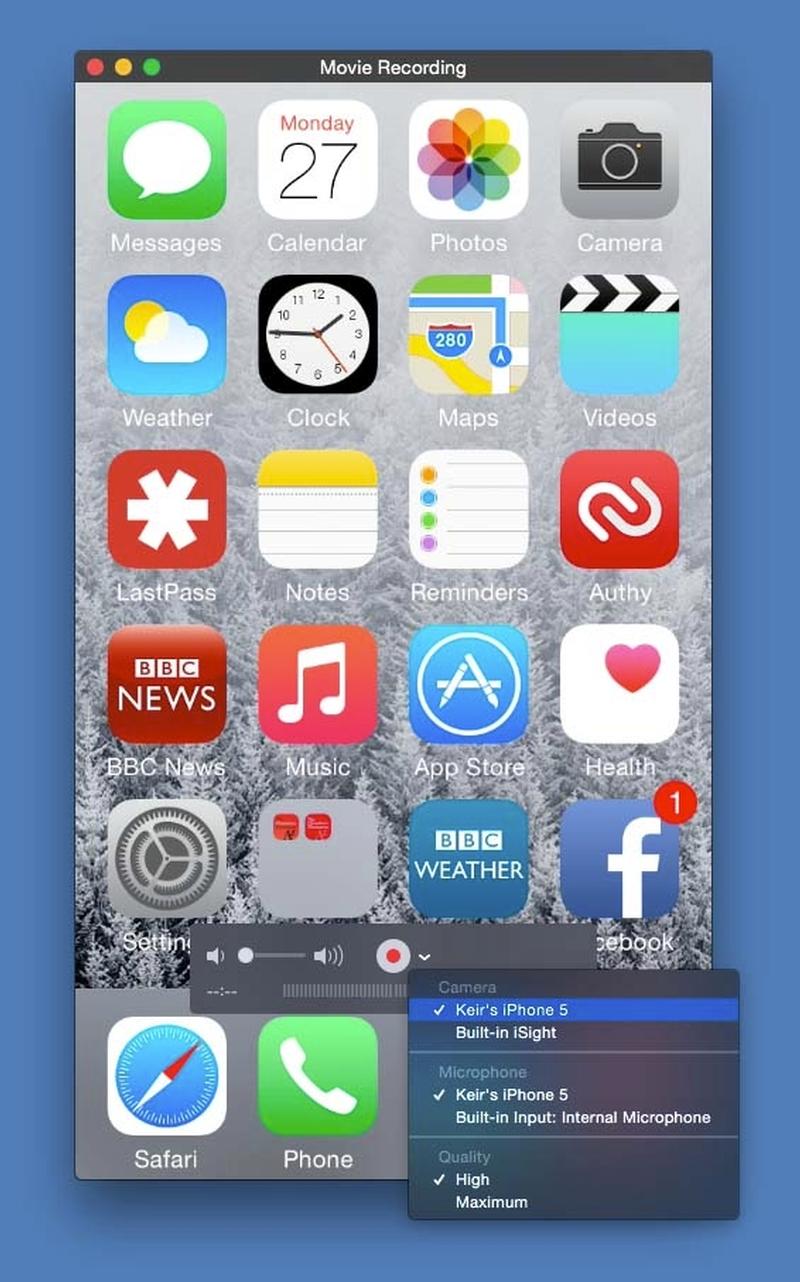
Ever needed to create a tutorial or walkthrough for something on iOS? Or do you just fancy projecting your iPhone or iPad screen onto your Mac’s display?

Previously the only way to do so was complicated setups involving AirPlay mirroring and third-party software. With Yosemite all you need do is attach the device to your Mac via USB and then open QuickTime Player. Then select File > New Movie Recording.

QuickTime will default to your Mac’s iSight camera (assuming it has one), but click the small down arrow alongside the record button and your iPad or iPhone will show-up as an option.

Of course, you haven’t got to record anything, and can simply expand the QuickTime Player window to full-screen for some cool game-play mirroring! You can also select the New Audio Recording option in QuickTime Player to record only audio via your phone or tablet’s microphone. (Sadly, recording video/audio in this works only with Lightning connections and not the older iPod-style cables.)

Standard

How to setup and use text shortcuts on iPhone and iPad

how_to_use_text_shortcuts_ios_screens


Tired of typing out long words, names, email addresses, web addresses, or entire sentences over and over again? Well then, save yourself some time and effort and set up iOS keyboard shortcuts for any and all of the text you type regularly. By default, the iPhone and iPad ship with “omw” as a shortcut for “On my way!” but you can create and customize any shortcut you want. What’s more, thanks to iCloud, any shortcut you create will automagically sync between your iPhone, iPad, and/or Mac. Here’s how!


How to create and customize iOS keyboard shortcuts

  1. Launch the Settings app.
  2. Tap General.
  3. Tap on Keyboard.
  4. Scroll down to Shortcuts
  5. Tap Add New Shortcut…
  6. In the Phrase field, type in the entire phrase you’d like to create a shortcut for.
  7. In the Shortcut field, type in the snippet you want to be replaced by the phrase.
  8. Tap Save at the top right.

How to edit and delete iOS keyboard shortcuts

You can edit shortcuts by tapping on them. You can delete them by tapping Edit at the top right of the Keyboard screen, or by swiping from right to left on the shortcut and tapping on Delete.

How to use iOS keyboard shortcuts

To use a shortcut just type the text you set up and hit the space key. The shortcut will be replaced by the phrase and you’ll be on your way!


Standard